About Jivox IQ
HOW TO CREATE DCO READY CREATIVE MASTERS
Getting Started
USING DYNAMIC CANVAS STUDIO
SETTING UP CAMPAIGNS
CAMPAIGN PREVIEWS AND APPROVAL
Generating Tags
Generating Data Pixels
Setting Up a Facebook Campaign
SETTING UP A YOUTUBE CAMPAIGN
Reporting
ADVANCED
USING JIVOX AD STUDIO
SETTING UP A NATIVE CAMPAIGN
Working With QuickStart Packages
SHOPPABLE INTEGRATION
APPENDIX
GLOSSARY
Title
Message
Create new category
What is the title of your new category?
Edit page index title
What is the title of the page index?
Edit category
What is the new title of your category?
Edit link
What is the new title and URL of your link?
Creating a Campaign
Copy Markdown
Open in ChatGPT
Open in Claude
In this section, we will see how to upload the ad components, create the asset source (feed), map the dynamic components to the video file, and configure the decisioning rules.
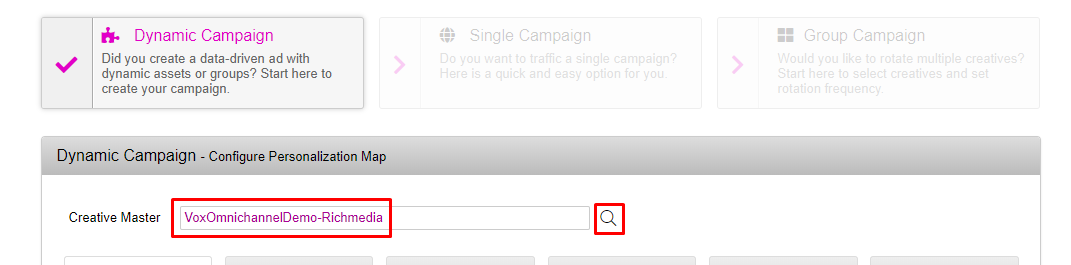
- Click on ‘Create new Campaign’

- At the top of the new campaign page, you can select which ‘Ad’ you want assigned to the new campaign. By default, it will be the most recent ‘Ad’ that was created. Once you have confirmed your ad, you can proceed to the next part of the workflow by clicking on the ‘Manage Assets’ tab.
Type to search, ESC to discard
Last updated on
Next to read:
Asset LibraryDiscard Changes
Do you want to discard your current changes and overwrite with the template?
Archive Synced Block
Message
Create new Template
What is this template's title?
Delete Template
Message
