Select files from your computer
This allows you to upload selected files from your computer
Upload a zip file
Any zip files (including folders) will be extracted and uploaded, retaining the folder structure inside (if there are any subfolders). This is a recommended approach as you can configure your file structure on your computer and once uploaded, it will maintain that folder/file structure.
Create a new folder
You can create folders inside the asset library and upload files into the folder of your choice. It’s recommended to have folders in order to better organise the files in the asset library. The asset library can be accessed by any campaign within the account.
To view the contents of the folder, click onto the + icon to expand the folder. You can now view the contents within the folder.
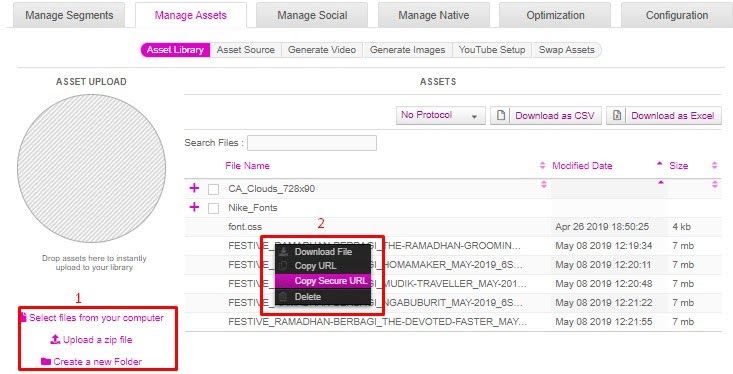
As shown in the screen shot above:
Under the given options, upload the individual file(s) or zip.
Once uploading is finished, we can see the files on the right side. To get the CDN link, right click on any file and select “Copy Secure URL”.
You can also download the links to all the files via an excel sheet by clicking on “Download as Excel” or “Download as CSV”
Please ensure “HTTPs URLs” is chosen before downloading
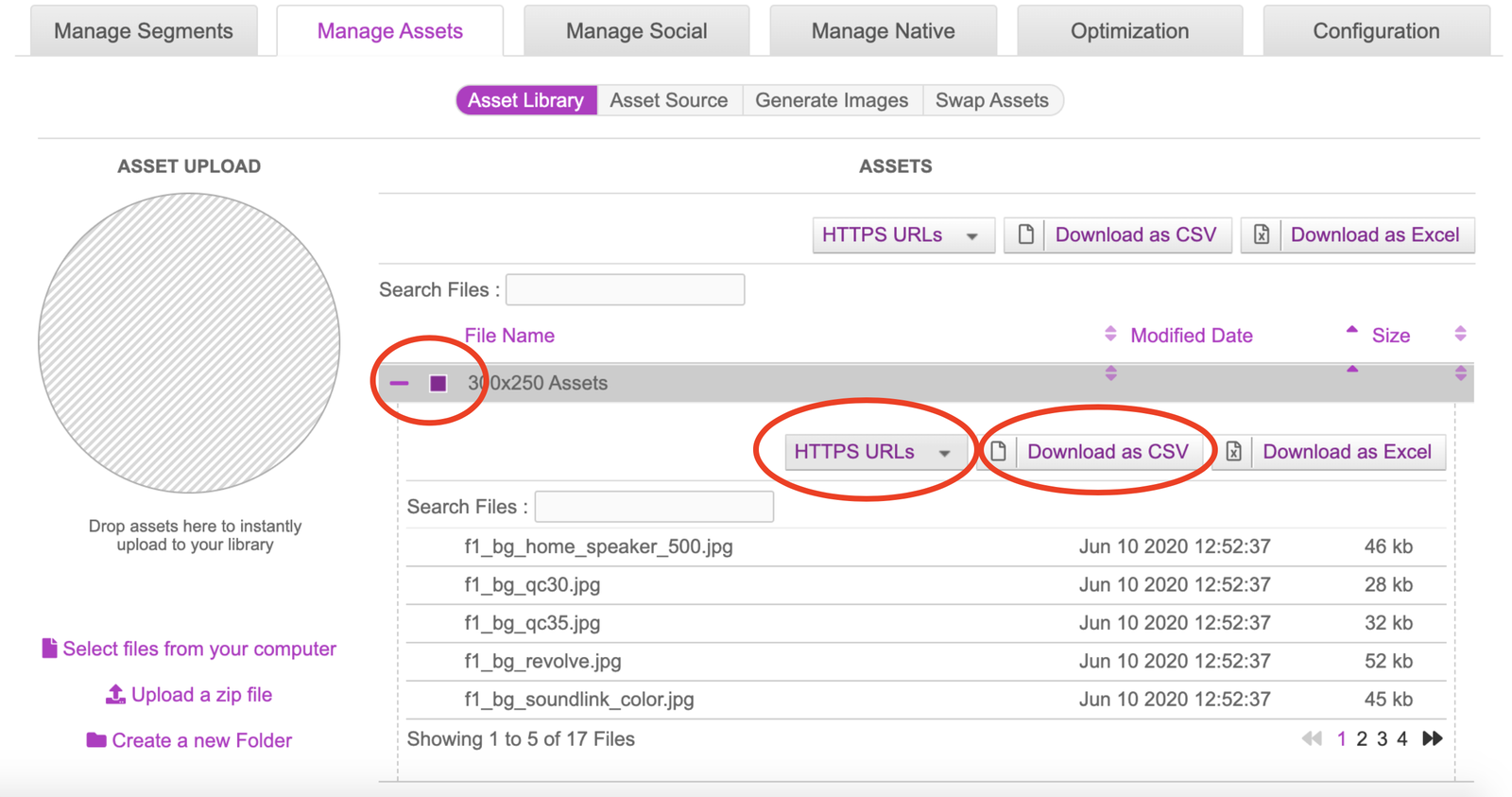
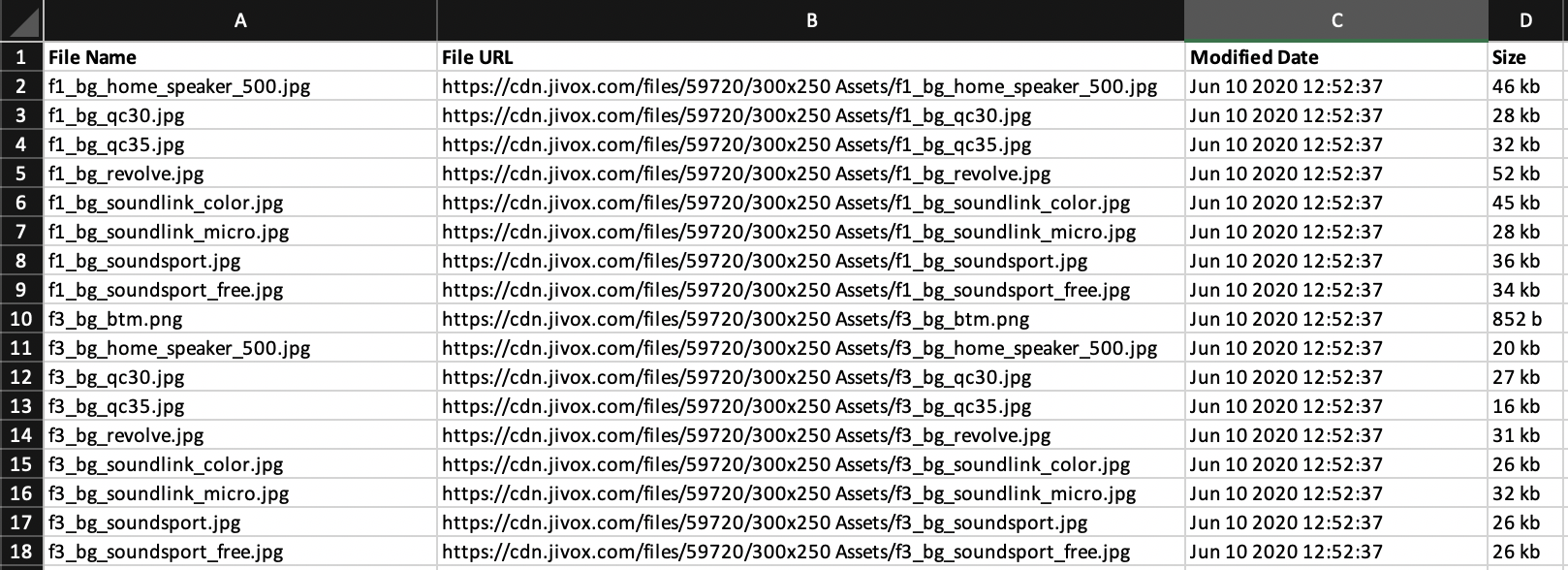
Once downloaded, open the file. There will be four columns, however we’re only concerned with the File Name & File URL columns. The File URLs will be used to create the Asset Source.
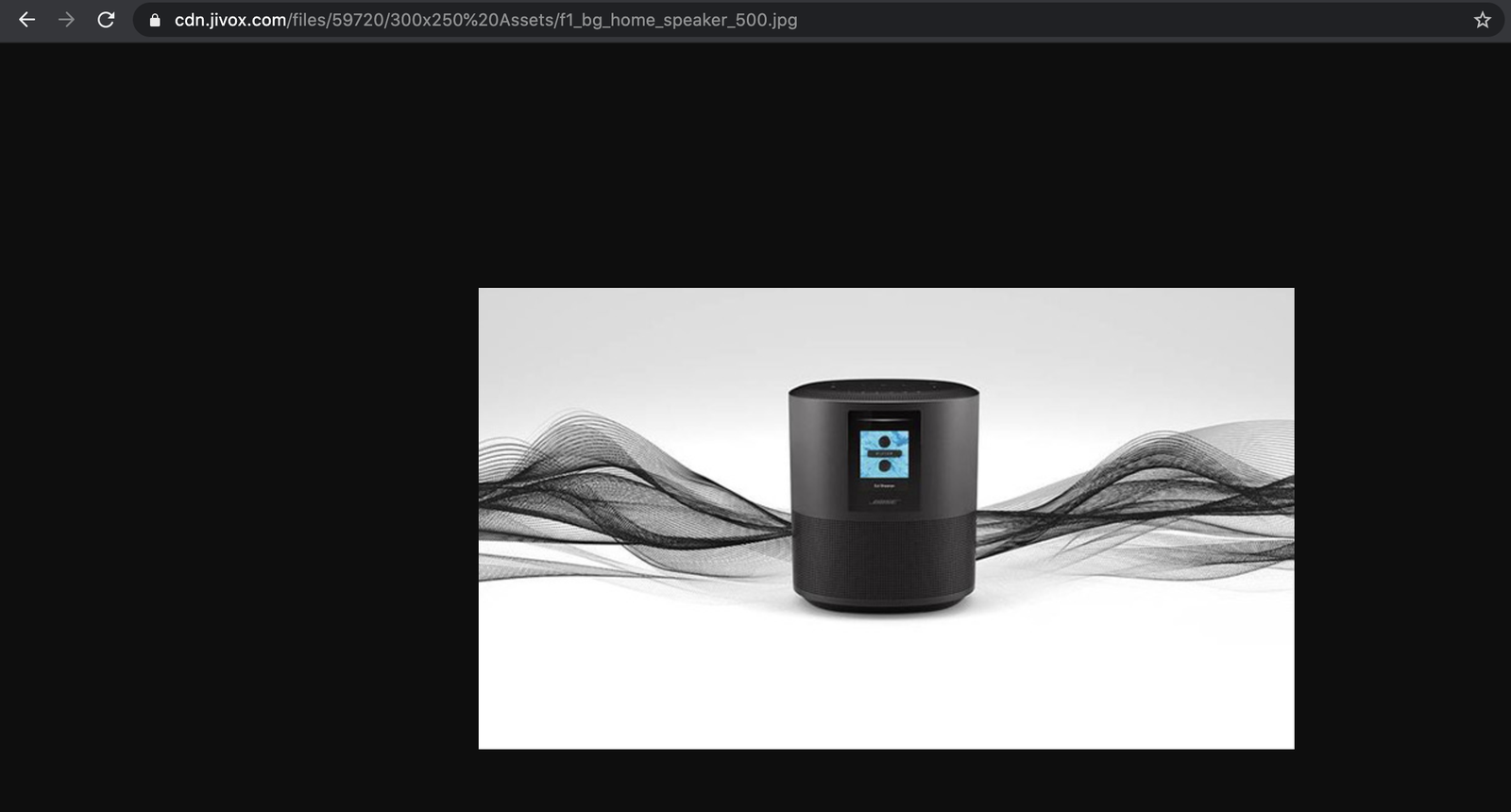
Copy any one of the CDN links and paste it into a browser of your choice. You should be able to preview your assets that are stored in the asset library.
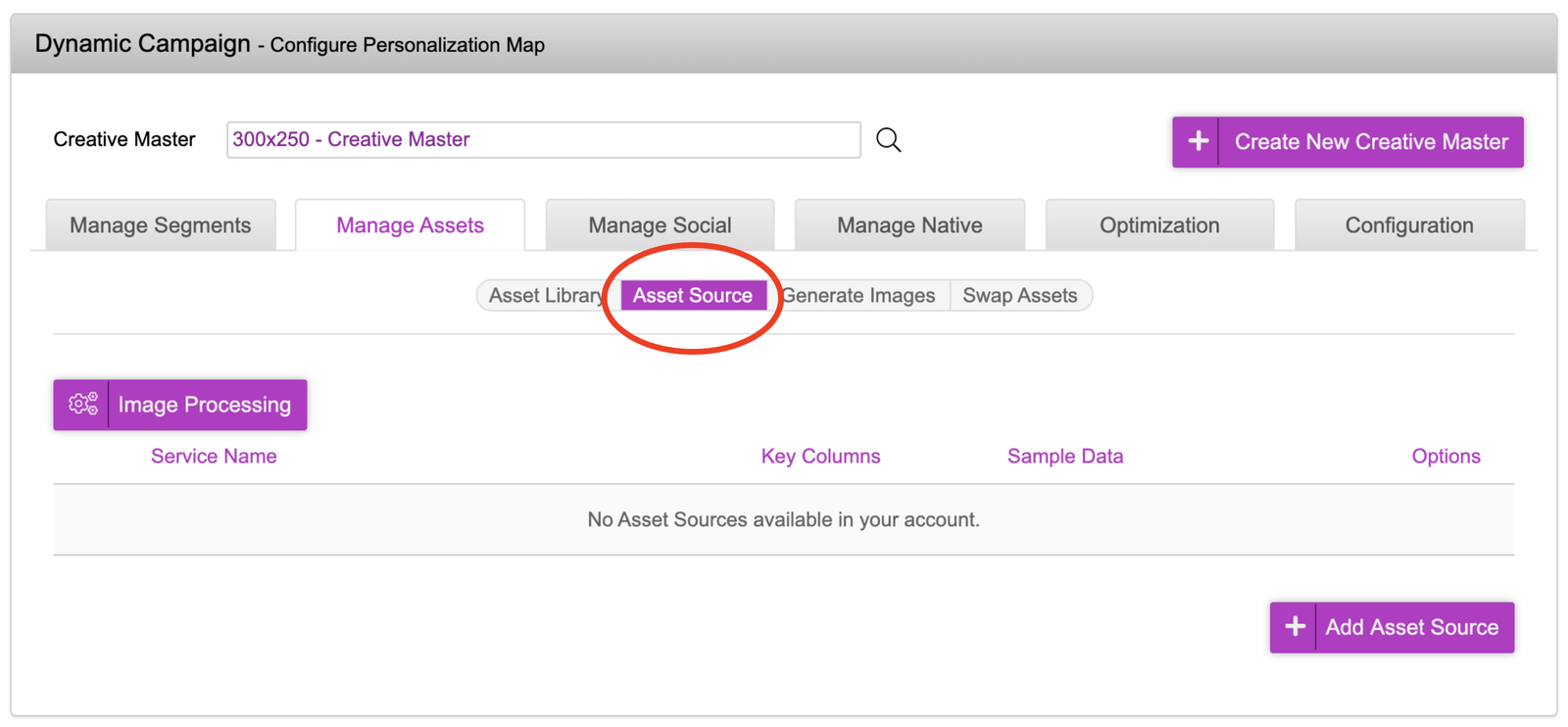
We will now move onto the next tab in which we will be uploading our ‘Asset Source’.