
In this section, we will see how to create a Dynamic Video Ad and upload a Creative Master.
For the purpose of this guide, we will be using demo assets. However, you can follow along with your own assets.
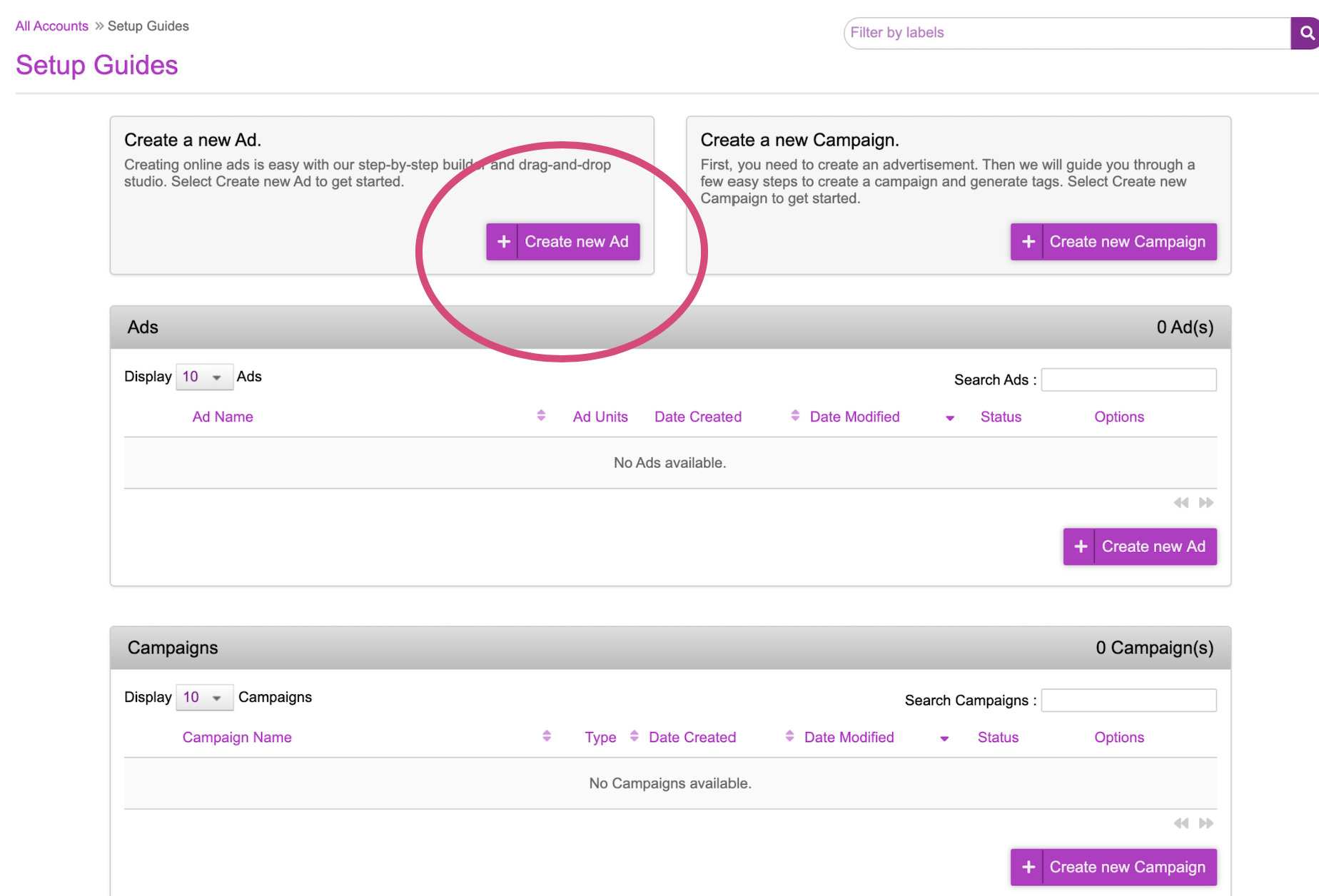
Click onto the ‘Create new Ad’ button at the top of the page
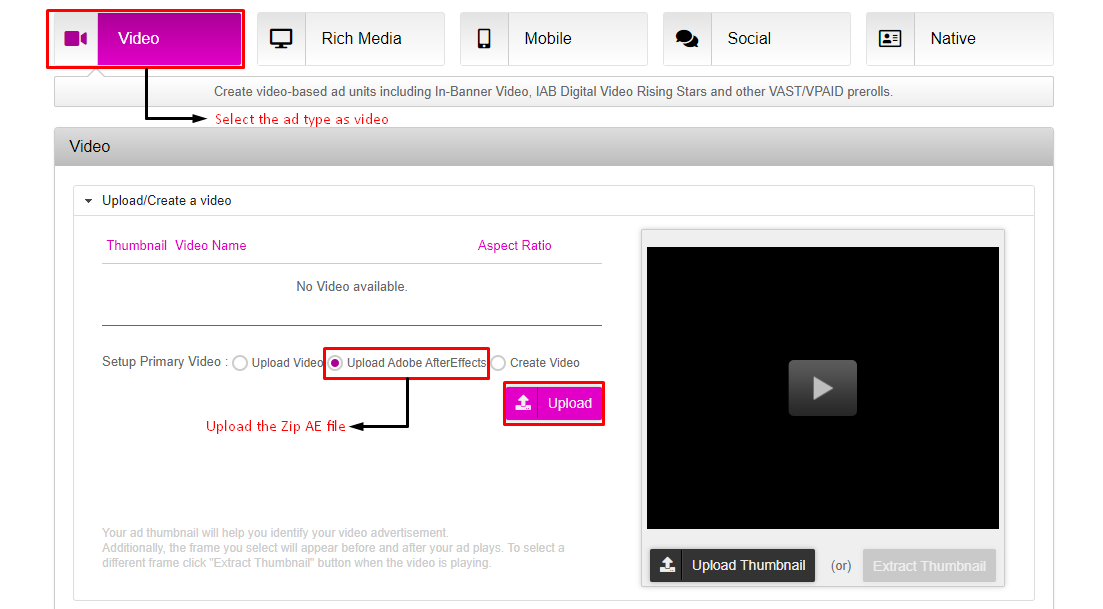
Choose the “Video” tab a. Select the checkbox “Upload Adobe AfterEffects”
Click Upload and select the AfterEffects file that you’d like to upload
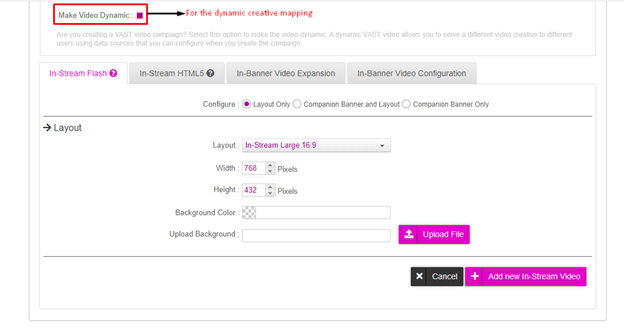
Check the checkbox "Make Video Dynamic” a. This will enable the dynamic components to be mapped in the Campaign setup portion.
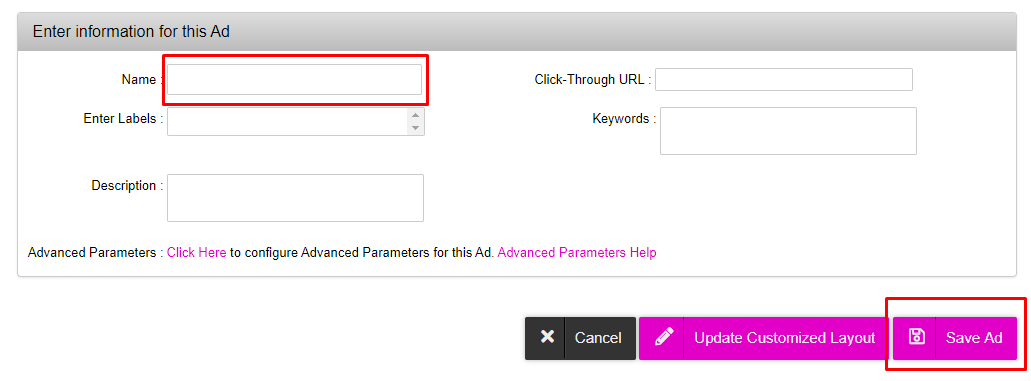
Enter a name for the Ad and click on “Save Ad”.
To recap what’s been done so far: a. An ad has been created b. Within that ad, a video Creative Master has been uploaded with an Adobe AfterEffects file c. The video has been marked as dynamic